Custom Name Workspaces ⭐️
WFX lets you assign your own custom workspace names, stored in your individual Chrome profile account. This lets you more easily identify all of your client workspaces in the dropdown.
Currently, your custom workspace names are only shown in the workspace-selector dropdown. We’ll expand this to show it everywhere it’s relevant in future releases.
IMPORTANT: You must refresh the dashboard to see the new names reflected in the list. This will be changed in future versions.
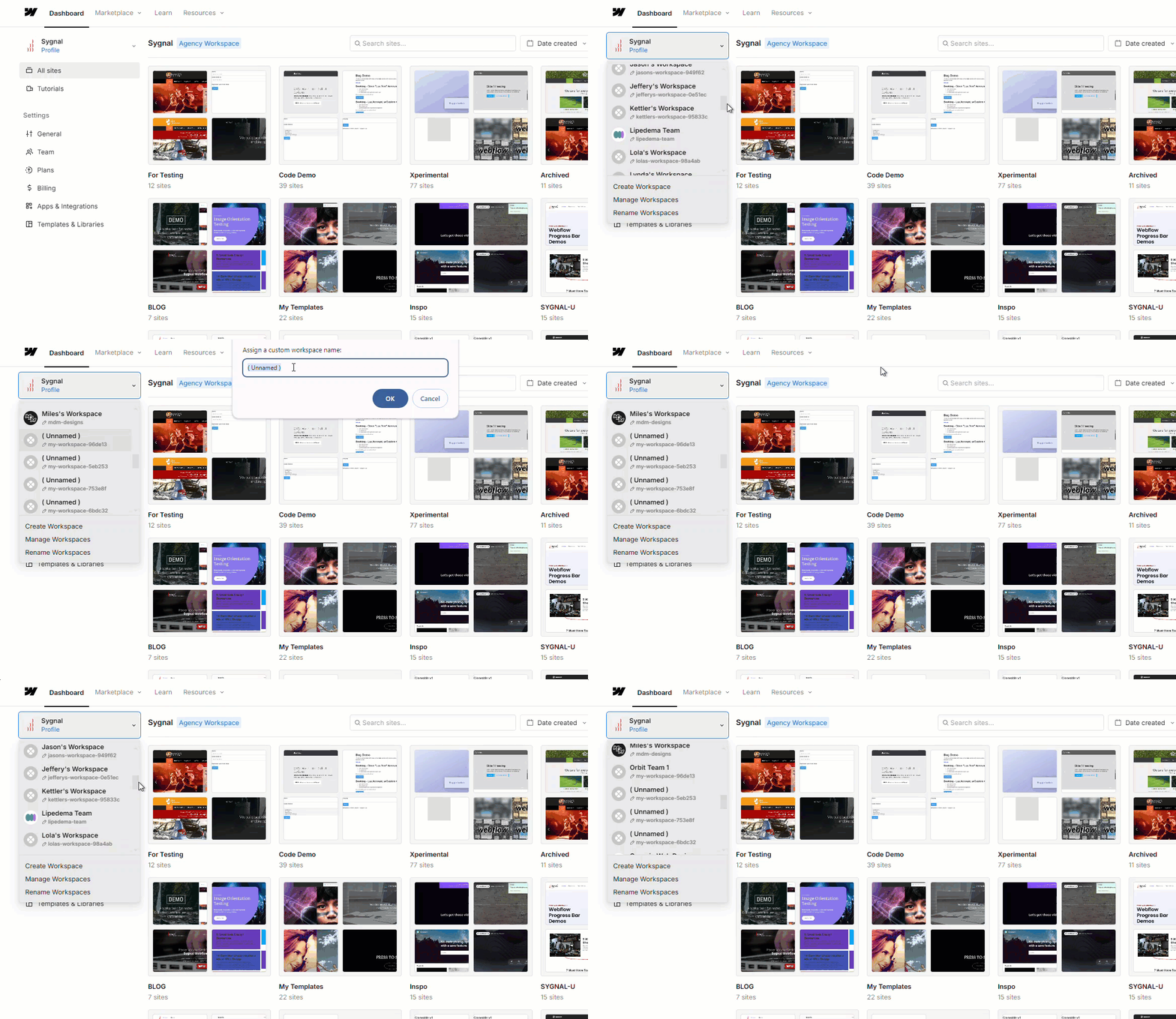
Current Features
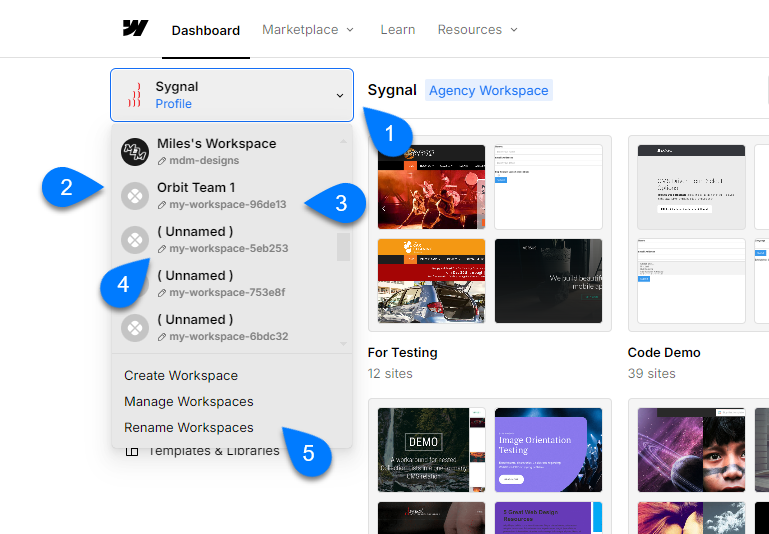
- Easily accessed from the workspace dropdown [ 1 ]
- Allows you to assign a custom name [ 2 ] to any workspace
- Shows the original workspace name [ 3 ] beneath, for reference
- Easy renaming, click the pencil icon [ 4 ]
- Access our (crude) configuration page using the new Rename Workspaces [ 5 ] option
How to Use This Feature
The easy way to set workspace names is by clicking the tiny pencil icon below each workspace name, just left of the workspace ID.
Rename Workspaces Page
There is also an extremely basic Rename Workspaces screen where you can see all names and rename them. It will get cooler.
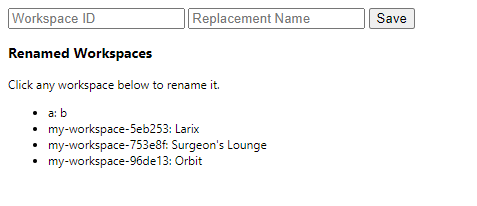
- Enter any workspace ID and the name you want to assign it
- You can see the workspace ID in the querystring when visiting any workspace e.g. https://webflow.com/dashboard?workspace=anotherworkspace
- For already named items, or any items named My Workspace, you’ll see them listed.
- Click these to easily rename them
Future Features
Under consideration.
- Re-sorting alphabetically, based on your custom name
- Tagging (internal, client, etc.)
- Starred workspaces, so that your current active projects can be pinned to the top of the list
- Support the custom names on other views
- Top of workspace name
- Manage workspaces view
Last updated on